Posts

Showing posts with the label Power Apps

Optimize Your Power Apps for Devices

Image
Starting out in Power Apps can be overwhelming at first. But once you get the hang of the basics, it's probably a good time to tweak the finer details going forward. I struggled for the better part of two years (yes, two years 🙄) attempting to figure out how to get rid of the black bars at the tops and bottoms of my apps (spoiler alert: they're called safe areas, not black bars). I just could not find documentation online, and my appeals to ChatGPT didn't yield any helpful insight, advice, or suggestions either.  That is, until I found the Optimize for Devices setting within Power Apps! It was a game changer, and opened up my apps to exactly what I was looking for all this time.  There are some drawbacks to enabling this feature. Just be mindful of these limitations and enjoy creating full screen app development! In summation, Optimize for Devices setting opens up your apps to consuming the full width and height of your development environment. Mitigation of certain pitfal...
Power Apps Custom User Image

Image
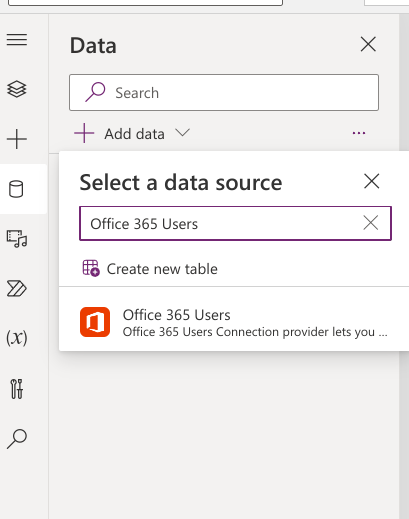
Personalizing Power Apps is not only fun, but it can also provide users with a sense of ownership. Custom messages with user info, the ability to change themes, and the like all contribute to making your Power Apps feel like home for those in your organization.  If a user has a profile picture uploaded to their Office365 account, you can further that sense of ownership following the steps below. Let's get started! 1. Add a Data Source [Figure 1-1] - Select a data source Create a new blank canvas app. Once created, add your data source from the tree view menu by clicking on the cylinder icon, then +Add Data. Search for, then choose Office 365 Users as your data source [Figure 1-1]. This will connect to all users available in your environment, enabling you to utilize info relevant to them. 2. Add an Image Control [Figure 2-1] Image Control Dropdown Menu Insert an image control from the Insert dropdown menu [Figure 2-1]. Move the image to the center of the screen and enlarge it for be...

Progress Bar with Timer Control in 3 Easy Steps

Image
If you ever find yourself needing to buy your Power Apps canvas app some loading time while your data is retrieved - or you want the user to feel like they're accessing a typical app - I have found that inserting a modern progress bar into a start page works well. With some settings tweaking, the process is fairly simple and straightforward! 1. Setting Up Your Environment First, you'll want to create a new blank Power App.

Myrtle Beach Power Platform User Group

Image
Are you a Power Platform developer in the Myrtle Beach area, or interested in learning the ropes of low-code solutions? Contact me about joining the Myrtle Beach PPUG (Power Platform User Group) ! Got a shorter name for the group? Share your thoughts on that too! We are planning to meet one evening a month at a TBA venue to network with peers and recruiters, eat some pizza and snacks, listen to presentations by some of our state's talented Microsoft MVP's , and give out some related swag! If furthering your knowledge of the Power Platform and/or advancing your career are high priorities in your life, come join us! I look forward to hearing from you! Follow me on LinkedIn!